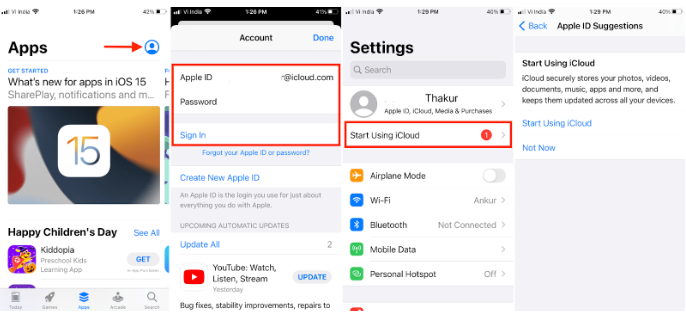
iCloud is Apple’s cloud service, helping users store photos, documents, and app data securely. Sometimes, you may need to log out of iCloud on your device. Signing out prevents access to Apple services, secures your data, and allows you to switch accounts safely. This guide will show exactly how to sign out of iCloud across devices.
Why You Should Sign Out of iCloud
Signing out of iCloud is essential in many situations. For instance, if you are selling your device, logging out ensures your data remains private. Additionally, signing out can resolve syncing issues, prevent accidental updates, and protect sensitive information. Knowing the correct steps avoids errors that could affect your Apple ID or device.
How to Sign Out of iCloud on iPhone and iPad
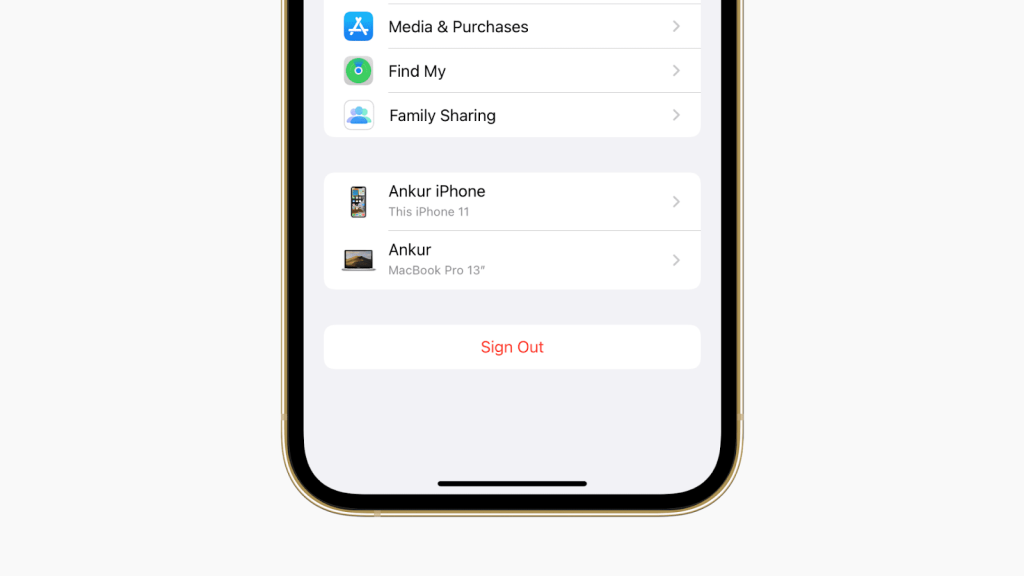
To sign out on iPhone or iPad, first open Settings. Tap your name at the top, then scroll down to select Sign Out. You may need to enter your Apple ID password. Choose whether to keep copies of your data on the device. Finally, confirm by tapping Sign Out.
How to Sign Out of iCloud on Mac
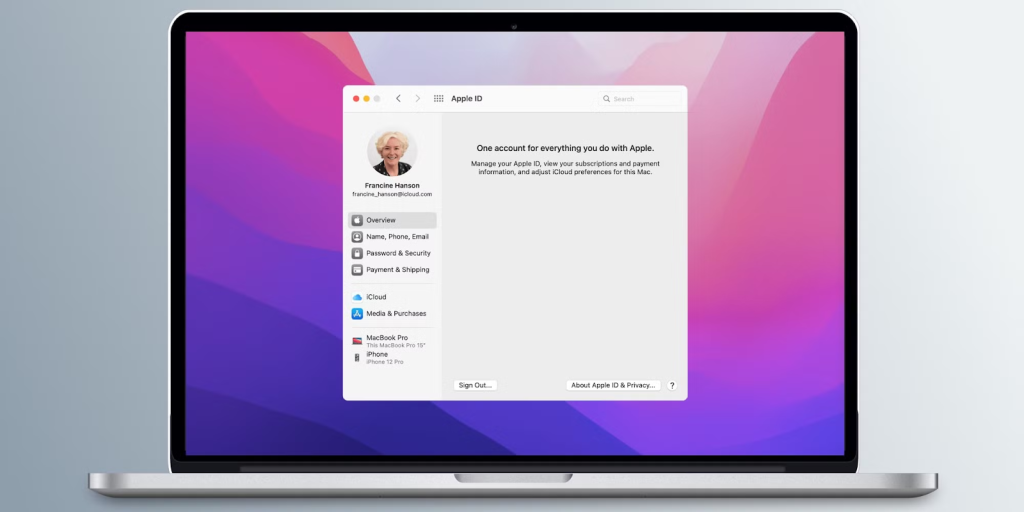
On a Mac, go to System Settings and click Apple ID. Next, select Overview or iCloud depending on macOS version. Click Sign Out, and choose to keep a copy of your important files locally. Confirm your decision, and the Mac will remove iCloud access securely.
How to Sign Out of iCloud on Apple Watch
Apple Watch users can log out of iCloud by unpairing their watch from the iPhone. Open the Watch app on your iPhone, select your watch, and tap Unpair Apple Watch. This automatically signs out iCloud from the device and keeps your data safe before re-pairing.
Troubleshooting iCloud Sign-Out Issues
Sometimes, signing out may fail due to password errors or network problems. Ensure your device is connected to Wi-Fi and your Apple ID password is correct. Restarting your device often fixes minor glitches. If problems persist, contacting Apple support can provide direct assistance without risking your account.
Tips for Smooth iCloud Sign Out
Before signing out, backup your data to prevent loss. Check for shared photos, contacts, or files. Remove any device from Find My iPhone if needed. Always verify that iCloud Drive and other services are synced. Following these steps ensures a smooth transition without data disruption.
Conclusion
Signing out of iCloud is simple but crucial for device security and privacy. By following the steps above, you can safely log out on iPhone, iPad, Mac, or Apple Watch. Don’t risk leaving your personal information exposed—sign out of iCloud now and protect your data.
FAQs
1. Can I sign out of iCloud without losing data?
Yes, you can choose to keep a copy of contacts, photos, and documents locally on your device before signing out.
2. Why does iCloud ask for a password when signing out?
Apple requires your password to prevent unauthorized access or accidental removal of your iCloud account.
3. Can I sign out of iCloud remotely?
Yes, using Find My iPhone from another Apple device or iCloud.com, you can remove your account remotely.
4. What happens if I forget my Apple ID password?
You must reset your password through Apple’s recovery process before signing out of iCloud.
5. Does signing out delete iCloud backups?
No, backups remain in iCloud but are no longer accessible from the signed-out device until you log in again.